
Scoopz for PC: How to Run It on Windows, Mac, and Chromebook (2026)
There’s no native Scoopz app for Windows or Mac. If you’re seeing a site claim otherwise — a .exe installer, a “PC edition,” or similar — treat that as a red flag rather than a shortcut, for the same reasons covered in our APK safety guide: legitimate apps in this space distribute through the official app stores, not standalone desktop installers.
That said, you can genuinely use Scoopz on a computer — just through an Android emulator, not a native install. Here’s how, plus what actually works and what doesn’t.
Method 1: Android Emulator (Recommended)
This runs the real Android version of Scoopz inside a virtual Android environment on your computer — it’s the closest you’ll get to the actual app experience on a desktop.
Commonly used emulators:
- BlueStacks — the most widely used, good general performance, straightforward setup
- LDPlayer — popular alternative, often recommended for lighter system resource use
- MEmu — another solid option, particularly for older hardware
- NoxPlayer — comparable feature set to the above
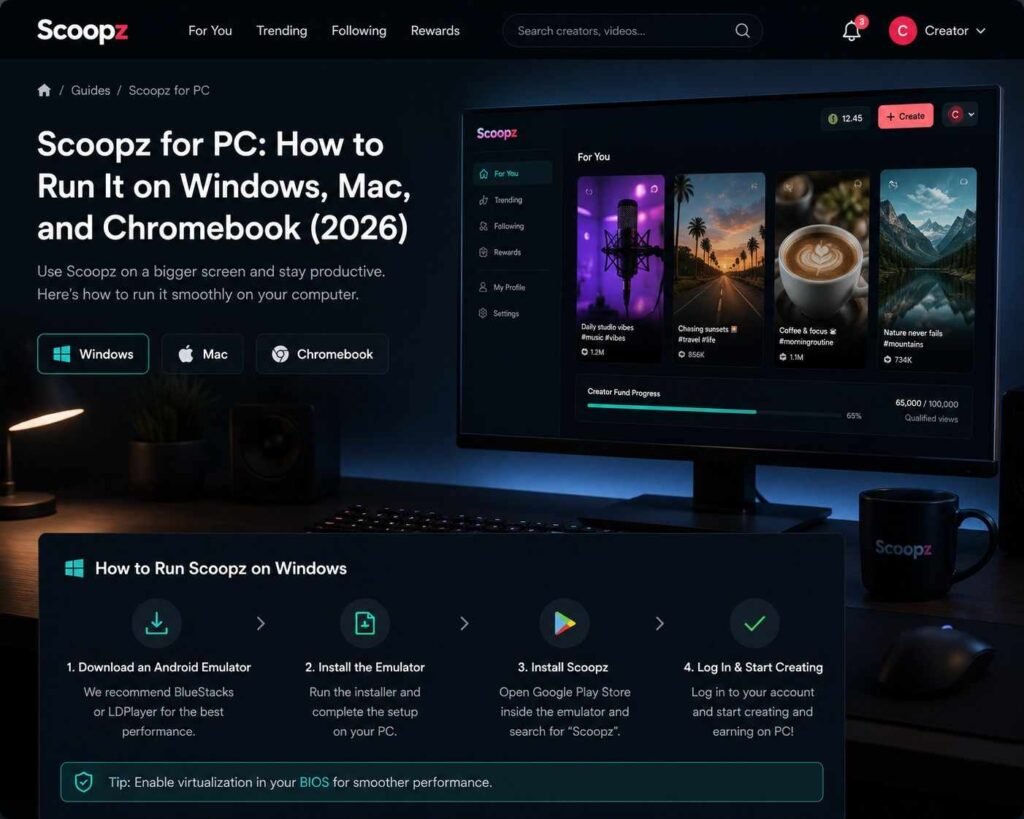
Setup steps (the same general process across all four)
- Download and install your chosen emulator from its official site
- Launch the emulator and sign in with a Google account (this is the same account system used on an Android phone)
- Open the Google Play Store inside the emulator
- Search for “Scoopz: Real Life, Real Videos” and install it exactly as you would on a phone
- Launch Scoopz from the emulator’s home screen
What works well
- Browsing the feed, following accounts, joining Circles, liking/commenting
- Checking your Creator Fund dashboard and account settings
What’s limited
- Recording new videos — since Scoopz’s core feature is short vertical video capture, recording relies on a phone-style camera; most emulators can pass through your PC’s webcam, but the experience (aspect ratio, quality, in-app camera effects) won’t match recording natively on a phone. If your primary goal is creating content, a real phone is still the better tool — treat the emulator route as best for browsing, managing your account, and reviewing analytics, not as your main recording setup
- Performance — emulators are resource-intensive; a mid-range PC with at least 4GB of RAM allocated to the emulator and a reasonably modern processor will run more smoothly than older hardware
Method 2: WebCatalog (Different From an Emulator — Read This Before Using It)
WebCatalog is a legitimate desktop tool, but it’s worth understanding exactly what it does before relying on it: it creates a desktop “app-like” window wrapped around a website, not the actual Android app. If Scoopz doesn’t offer a full-featured web version of its app, a WebCatalog wrapper will only be as functional as Scoopz’s mobile website — which is typically far more limited than the real app (no native upload flow, no push notifications, no Creator Fund dashboard in most cases). Use this only if you specifically want a pinned browser shortcut, not as a substitute for the emulator method if you need real app functionality.
Chromebook
If your Chromebook supports the Google Play Store (most modern models do), installation is the most straightforward option of all — no emulator required. Open the Play Store app built into ChromeOS, search for Scoopz, and install it exactly as you would on an Android phone. Camera/recording functionality will depend on your specific Chromebook’s built-in webcam.
Minimum System Recommendations for Emulator Use
These are general emulator guidelines, not Scoopz-specific requirements (Scoopz itself doesn’t publish desktop system requirements, since it isn’t designed for desktop):
- 4GB+ RAM allocated to the emulator (8GB+ total system RAM recommended)
- A processor from the last 5–6 years for acceptable performance
- Hardware virtualization enabled in your BIOS/UEFI settings (required by most Android emulators)
- A few GB of free storage for the emulator plus the app itself
Troubleshooting Scoopz on PC
Emulator won’t launch Scoopz / app crashes:
- Confirm hardware virtualization (VT-x/AMD-V) is enabled in your system BIOS — this is the most common cause of Android emulators failing to run properly
- Update your emulator to its latest version before troubleshooting further
- Allocate more RAM to the emulator instance if your system has it available
Camera/recording not working in the emulator:
- Check the emulator’s settings for webcam passthrough and confirm it’s enabled and pointed at the correct device
- If recording quality is unacceptable, this is a known limitation rather than a bug — consider recording on your phone and reserving the PC session for browsing/account management
Google Play Store missing inside the emulator:
- Some emulator builds ship without Google Play preinstalled; check your specific emulator’s documentation for how to add Google Play services, since this varies by which one you’re using
Frequently Asked Questions
This guide is independent and not affiliated with, endorsed by, or operated by Local AI, Inc. or Scoopz. Emulator and third-party tool recommendations reflect general Android emulation practices, not official Scoopz support channels.